MetaTrader 5 Setup Guide
Follow these simple steps to connect your MetaTrader 5 account with FXTradeMatrix
Download the FXTradeMatrix ExpertAdvisor
Download our secure ExpertAdvisor (EA) file that will automatically sync your trades from MetaTrader 5 to your FXTradeMatrix account.
File: FXTradeMatrixTradeSync.ex5 | Size: ~76KB | Compatible with MT5 Build 3000+
Install the EA in MetaTrader 5
Open MetaTrader 5 and access the data folder by clicking: File → Open Data Folder
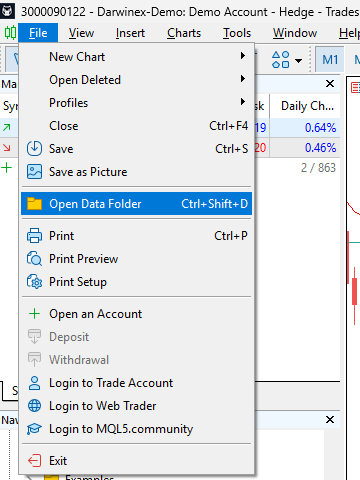
Navigate to MQL5 → Experts folder and paste the downloaded FXTradeMatrixTradeSync.ex5 file here.
Enable Web Requests in MT5
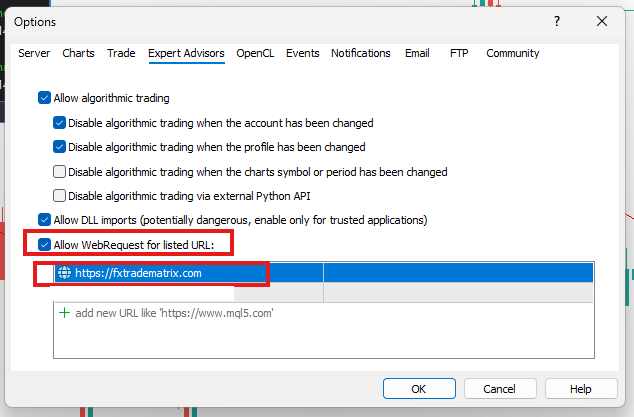
In MetaTrader 5, click on Tools → Options
- Go to the "Expert Advisors" tab
- Check "Allow WebRequest for listed URL"
- Enter:
https://fxtradematrix.com - Click "OK" to save
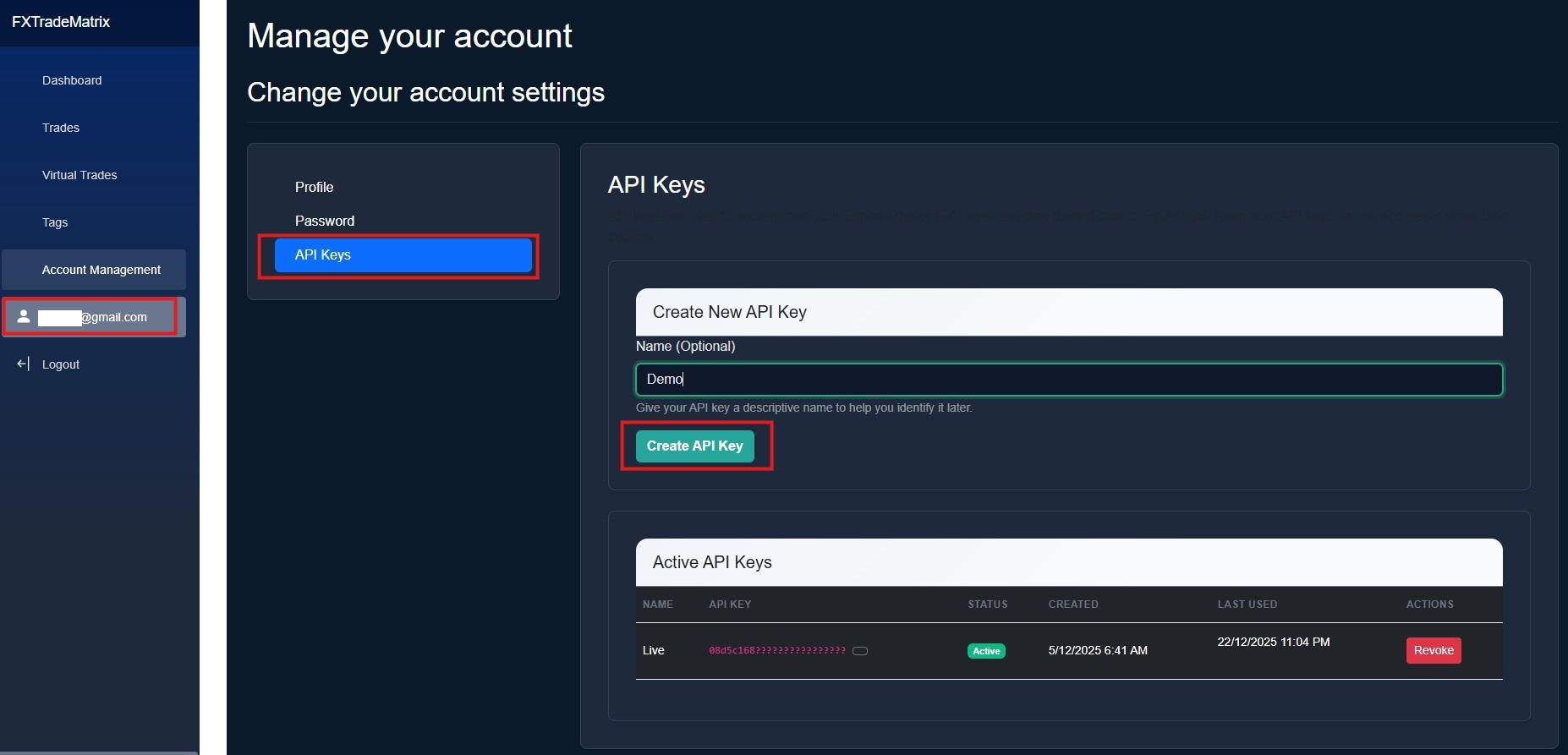
Get Your API Key
Sign in to your FXTradeMatrix account and generate an API key from your account settings.
Attach EA to Chart & Configure
In MetaTrader 5, drag the FXTradeMatrixTradeSync EA from the Navigator panel onto any chart. In the settings dialog:
- Enter your FXTradeMatrix API Key in the ApiKey parameter
- Configure your preferred sync settings
- Make sure "Allow live trading" is checked
- Click "OK" to activate
Verify Connection
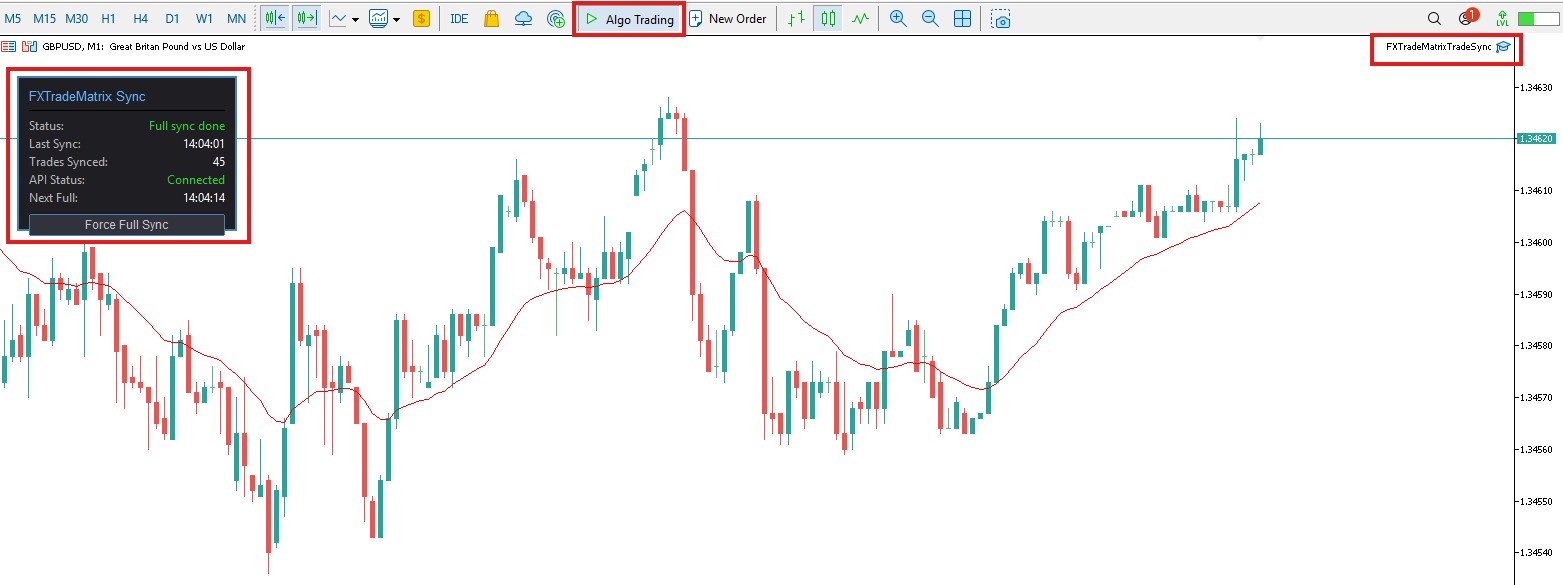
Once configured, the EA will automatically start syncing your trades. You should see:
- Connection status message in the EA panel on your chart
- Success messages in the MT5 Experts log tab
- Your trades appearing in your FXTradeMatrix dashboard
- API key "Last Used" timestamp updating in your account settings
Troubleshooting
EA shows "Connection Failed"
Make sure your API key is correct and that WebRequests are enabled for https://fxtradematrix.com in Tools → Options → Expert Advisors.
Trades are not syncing
Check that AutoTrading is enabled (green button in toolbar) and that the EA is active on your chart. Look for any error messages in the Experts log.
Need More Help?
Contact our support team at support@fxtradematrix.com or visit our Contact page for assistance.